ATS-Friendly Resume Guide: Format, Layout & Templates
An ATS-friendly resume is clean, text-based, easy to parse. Here are the formatting rules — layout, fonts, file types, and templates — that get you seen.
You've heard the term a hundred times: "ATS-friendly resume." But what does it actually mean in practice?
It means the software that receives your application can read your resume the way you intended it. No garbled text. No fields in the wrong place. No recruiter opening your file to find a wall of jumbled characters.
The good news? Making a resume ATS-friendly isn't restrictive. And it matters: HR.com's 2025 Future of Recruitment Technologies report found that 78% of HR professionals use an applicant tracking system — more than any other recruiting technology. This isn't about stripping out all creativity. It's about a handful of concrete formatting rules that keep your text parseable while still looking sharp to a human. Here's the complete guide.
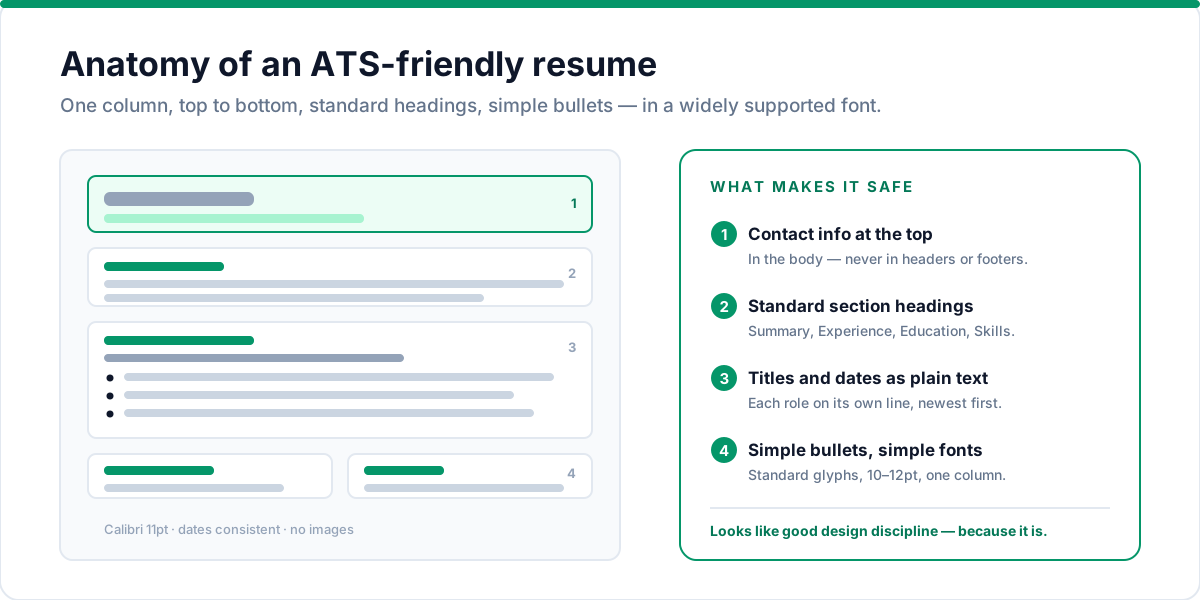
What "ATS-friendly" actually means
An applicant tracking system extracts the text from your resume and maps it to fields in a database. The entire game is this: make the text extraction clean and unambiguous.
If the parser reads your resume correctly, you're searchable, rankable, and visible. If it reads it incorrectly — or not at all — you might as well not have applied. Our guide on what an ATS is and how it works covers the mechanics in depth. This guide focuses purely on the formatting rules.
The layout rules that matter most
Use a single column
Two-column layouts are the single most common reason resumes get mangled by parsers. When a parser reads left-to-right, top-to-bottom, a sidebar full of skills and certifications gets scrambled into a jumble that often ends up attached to the wrong section — or dropped entirely.
A single-column layout reads in a natural order: header, summary, experience, education, skills. That's exactly the order most parsers expect.
Choose standard fonts
Keep it boring. Calibri, Arial, Georgia, Helvetica, and system fonts like them parse without a hiccup across every ATS. Exotic display fonts and non-standard character sets are where parsing glitches happen — especially with symbols, special characters, and unusual letterforms.
Font rule: standard font, 10–12pt body text, consistent headings. You can still use a clean serif like Georgia if you want character — just keep it widely supported.
Skip tables, text boxes, and graphics
Tables are the classic parser trap. A parser can often read table content, but it frequently reads it in the wrong order — cells get strung together left-to-right across the whole table, destroying your chronology.
The same goes for:
- Text boxes and shapes that float outside the normal flow
- Images, logos, or icons (including icon-based contact fields)
- Headers and footers (some parsers skip them entirely)
- Charts, graphs, or decorative graphics
If a resume tool built your layout with tables or floating elements, the preview may look great while the parsed result is chaos. That's why the best approach is a resume builder like Talent & Story that renders every template as clean, flowing text. Poor formatting is one of the most common resume mistakes — and the easiest to fix.
Use standard section headings
Name your sections what a parser expects to find:
- Professional Summary or Summary
- Professional Experience or Work Experience
- Education
- Skills or Core Competencies
- Certifications
- Projects
- Languages
Custom names aren't fatal — modern parsers are reasonably smart — but standard names are friction-free. And your contact details belong at the very top: name, email, phone, city, and optionally your LinkedIn URL.
Keep bullet points simple
Use standard bullets (•) or simple dashes (-). Open each bullet with a strong action verb. Avoid custom glyphs, emoji, arrows, and Wingdings-style characters. Parser dictionaries handle the basics; fancy characters turn into garbled symbols or plain gaps.
File type: PDF vs. DOCX
Which file type should you send?
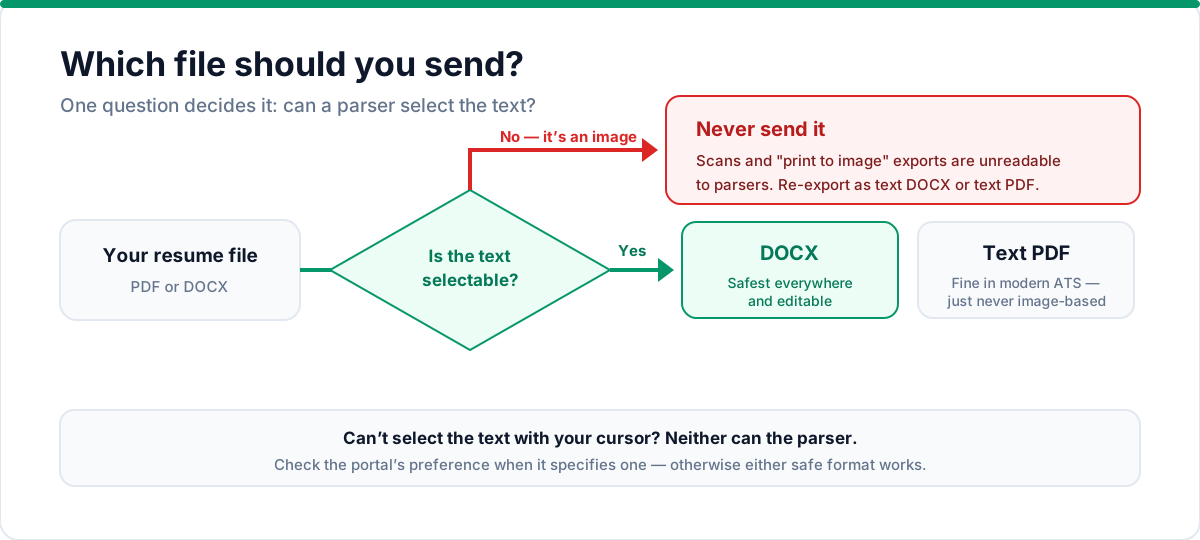
- DOCX is the safest universally — Word documents parse cleanly in every major ATS, and recruiters can edit them if needed.
- PDF is perfectly fine in the vast majority of modern ATS platforms — provided it's a true text-based PDF, not an image or a scan. Always export as a text PDF, never "print to image."
The single thing to avoid: an image-based PDF. If you can't select the text in your PDF with your cursor, a parser can't read it either.
A quick before-and-after
Here's what goes wrong, in miniature.
Before (breaks parsers): Two columns with a skills sidebar; section headings in graphic banners; contact info in the page footer; bullet points as image icons; a decorative serif font.
After (parses cleanly): One column. Standard sections top to bottom. Contact info at the top. Simple bullets. Georgia font, 11pt, with clean spacing and a crisp header with your name and title.
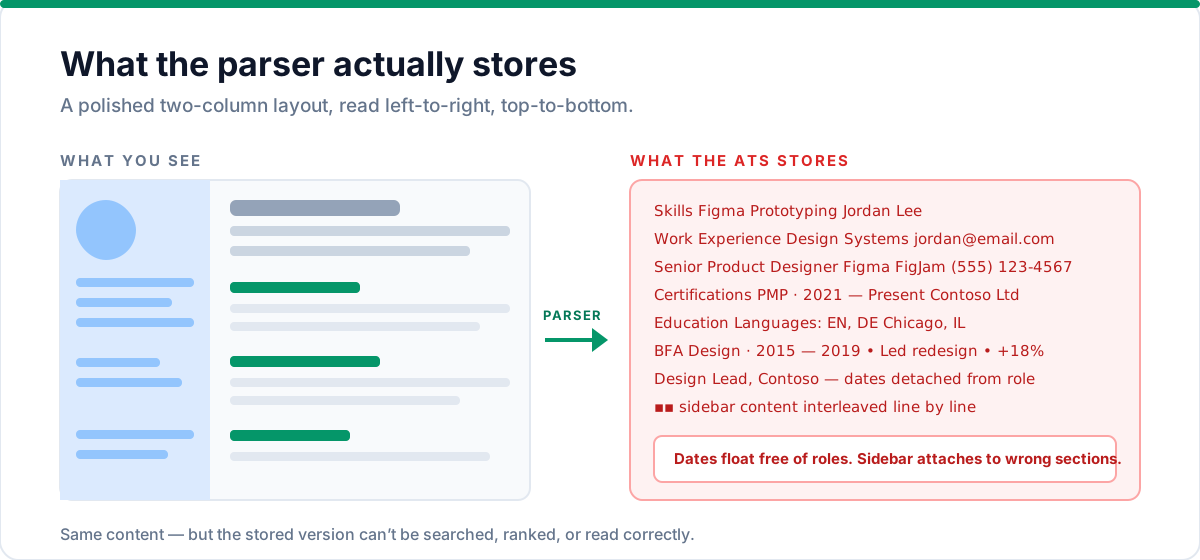
The second version looks professional, reads easily to a human, and gets indexed perfectly. That's the goal.
Section-by-section formatting guide
Let's make the rules concrete, section by section, so you know exactly what to check as you build.
Header
Name at the very top, larger than everything else. Directly beneath: phone, email, city and state, and optionally your LinkedIn URL or personal site. Skip the photos — most ATS platforms either strip them or recruiters ignore them, and a photo adds parsing surface area with zero benefit in most markets.
Professional summary
Three to five lines, or a single strong paragraph. This is where you front-load your most important keywords in a human-friendly sentence or two. Once your format is clean, tailor your content to each application. Recruiters read it first; the ATS indexes it first. Worth getting right — see our guide on writing a resume summary.
Professional experience
List roles newest first. For each: job title, company, location, and dates on their own lines, then your bullets underneath. Titles and company names are high-value parse targets — keep them as plain text, not styled as part of a graphic. If you held multiple roles at one company, list each role separately.
Education
Same structure: institution, degree, field of study, dates. If you have a career gap, keep the dates honest and brief. Keep it minimal once you have a few years of experience — your experience should carry the weight.
Skills
Grouped lists work best: "Design: Figma, FigJam, Prototyping, Design Systems." Grouping makes a scanner's job trivial and gives a human instant readability. This section is the most keyword-dense part of most resumes, so it deserves care — how to choose the right keywords covers it properly.
Certifications, projects, languages
Same principle as everything else: plain text, standard headings, consistent formatting. These sections are great places to capture credentials recruiters actively search for.
The parsing pitfalls most candidates hit
A few failure modes account for the vast majority of mangled parses. Recognize them, avoid them:
| Pitfall | What happens | The fix |
|---|---|---|
| Two-column layout | Sidebar skills get scrambled or dropped | Single column, top-to-bottom flow |
| Tables for layout | Dates and content read in wrong order | Plain text sections, no tables |
| Icon contact fields | Phone/email never extracted | Text contact block at the top |
| Text in headers/footers | Contact info vanishes | Keep it in the body |
| Fancy bullet glyphs | Characters become garbled symbols | Standard bullets or dashes |
| Image-based PDF | Entire resume unreadable | Export text PDF or DOCX |
Print this table and check your resume against it once — it will save you across every future application.
Choosing an ATS-friendly template
You don't need to design your own resume. You need a template that's been built to parse — then you make it yours.
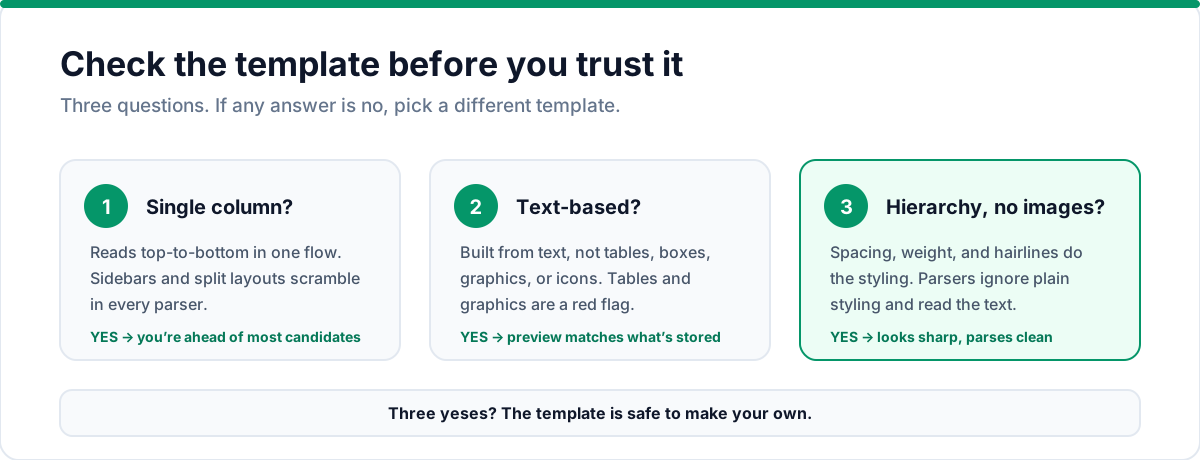
When you pick a template, check three things:
- Is it single-column? If yes, you're already ahead of most candidates.
- Is the layout text-based? Tables and graphics are a red flag.
- Does it have clear visual hierarchy without depending on images? Good spacing, strong typography, and rules/lines (hairlines, borders) are fine — parsers ignore plain styling and read the text.
Talent & Story ships eight ATS-safe templates, from Minimal and Classic to Executive and four premium designs. Every one renders as flowing text with no tables, graphics, or image-based elements — so you can pick the look you like and switch freely without ever touching your data. Your preview matches the exported PDF exactly, and every export (PDF, DOCX, Markdown, plain text) parses cleanly.
How to see your resume the way an ATS does
You don't need special software to sanity-check parsing. Do this in two minutes:
- Select all text in your PDF (Ctrl/Cmd+A) and copy it into a plain text editor. If the text reads top-to-bottom with sections in order — title, company, dates, bullets intact — it will parse well.
- Paste it into a plain-text file and check for: skills that appear in the wrong section, dates detached from their roles, and any garbled symbols where your bullets used to be.
- Check your file size. A text resume is a few hundred kilobytes at most. Anything over 1MB usually means embedded images or fonts — a parsing risk and a sign something's off.
This copied-text view is essentially what an ATS stores. If it looks good as plain text, you're in safe territory in virtually every system. If it looks scrambled, no amount of pretty layout is going to rescue it — fix the structure, not the styling.
The full checklist
Before you submit anywhere:
- One column, top-to-bottom flow
- Standard, widely supported font (10–12pt)
- No tables, text boxes, images, icons, or charts
- Contact info at the top, not in headers/footers
- Standard section headings
- Simple bullet points, no glyphs or emoji
- Text-based PDF or DOCX export
- Dates in a consistent format (e.g., "MMM YYYY – Present")
- No columns with skill sidebars
Frequently asked questions
What fonts are ATS-friendly?
Stick to widely supported fonts: Calibri, Arial, Georgia, Helvetica, or system fonts. These parse without issues across every major ATS. Exotic display fonts and non-standard character sets are where parsing glitches happen.
Should I use a two-column resume?
No — two-column layouts are the single most common reason resumes get mangled by parsers. A single-column layout reads in natural order and parses reliably. If you want visual hierarchy, use spacing, font weight, and subtle lines instead.
Is PDF or DOCX better for ATS?
Both parse well in modern systems when they're text-based. DOCX is slightly safer across older ATS platforms. The one thing to avoid: image-based PDFs, which are completely unreadable to parsers.
How do I know if my resume is ATS-friendly?
Copy all text from your PDF and paste it into a plain text file. If it reads cleanly top-to-bottom with sections in order, it will parse well. If it looks scrambled, fix the structure before you fix anything else.
Can I use tables or text boxes for layout?
No — tables and text boxes are parser traps. Content gets read in wrong order or dropped entirely. Use plain text sections with standard headings instead.
Do ATS systems care about font size?
Not directly, but keep it between 10–12pt for readability. Too small and humans struggle; too large and you waste space. Standard sizing ensures both parsers and recruiters can read comfortably.
The bottom line
An ATS-friendly resume isn't a compromise — it's good design discipline. Clean layout, plain text, consistent structure. That combination gets you parsed correctly, searched successfully, and opened by a human who can actually find what they're looking for.
The more you remove parsing risk, the more of your substance gets through. Write strong content, wrap it in a clean format, and run it through our 15-point ATS checklist before you submit.
Build your ATS-friendly resume from a template that's already safe — start free and export a clean PDF or DOCX in minutes.
Put this into practice with Talent & Story
Build an ATS-friendly resume, get an instant compatibility score, and manage your entire job search in one workspace.
Written by
Talent & Story Team · Career Workspace
We build Talent & Story — the career workspace for building ATS-friendly resumes, writing cover letters, tracking applications, and preparing for interviews. Every guide is written to be practical enough to use the same day.